
JPG to Excel Converter
Convert JPG and Images to Excel Tables
Upload a JPG, PNG, photo, or screenshot with table data. The online OCR converter extracts rows and columns into an editable Excel XLSX file.
Supported uploads and file limits
Choose the upload path that matches where your table image is stored, then check the format and size before conversion.
Image formats
Use common table screenshots or photos such as JPG, PNG, WebP, GIF, BMP, and TIFF. Clear screenshots usually work better than compressed chat images.
Upload sources
Upload from your device, import from Google Drive, Dropbox, or OneDrive, or add a direct image link when the file is already online.
Size limits
Each file can be up to 10 MB. Batch uploads can include up to 20 files, with a combined limit of 50 MB.
How to Convert JPG to Excel?
Upload JPG, PNG, Photo, or Screenshot
Drag and drop a JPG, PNG, photo, screenshot, or scanned table image, then preview it before conversion.
Extract Table Data with OCR
OCR and AI detect rows, columns, headers, numbers, and table structure from the image.
Download Excel or XLSX
Download an editable Excel XLSX file for cleanup, filtering, formulas, or sharing.
What the Excel output contains
The converter creates an XLSX spreadsheet from the detected table structure. It is still OCR output, so important amounts, dates, IDs, and formulas should be reviewed before use.
- Rows and columns are extracted as editable spreadsheet cells, not as a flat screenshot.
- You can open the file in Excel, Google Sheets, Numbers, or compatible spreadsheet software.
- Merged cells, wrapped headers, and unusual layouts may need manual cleanup after export.
- Review financial values, identifiers, and dates before using the spreadsheet in production work.
Images that work best
OCR accuracy depends on how clear the table is. Use this as a quick check before spending credits on a conversion.
- Clear screenshots of tables from apps, dashboards, or PDFs.
- Invoice, receipt, inventory, or statement photos with straight rows.
- Images where headers, numbers, and grid lines are readable.
- Heavy glare, shadows, motion blur, or very low resolution.
- Tables photographed at a steep angle or split across multiple images.
- Dense handwriting, handwritten corrections, or notes mixed into table cells.
Why Choose This Image to Excel Converter?
Designed for clean tables and tough scans, this converter combines OCR and AI to deliver reliable spreadsheets fast.
Common table image conversions
Use the converter for structured screenshots and scanned tables where rows and columns need to stay editable.
Invoices and receipts
Line items, totals, tax rows
Extract item names, quantities, unit prices, totals, and notes from clear invoice photos into an editable spreadsheet.
Inventory lists
SKU, stock, locations
Turn warehouse photos or exported table screenshots into rows that can be sorted, filtered, and checked in Excel.
Reports and statements
Dates, amounts, categories
Convert monthly statement screenshots and tabular reports into spreadsheet data for reconciliation and cleanup.
Image checklist before upload
- Crop the image so the table fills most of the frame.
- Keep text horizontal and avoid perspective distortion.
- Use even lighting and avoid glare over numbers.
- Prefer sharp screenshots or high-resolution photos for dense tables.
When OCR needs a second pass
What happens after conversion
The result is an XLSX spreadsheet, not a flat image. You can edit cells, filter rows, adjust column widths, and keep cleaning the data in Excel, Google Sheets, or compatible spreadsheet software.
People also ask
Can I convert handwritten tables to Excel?
Clear handwriting may work, but printed tables, screenshots, and sharp photos are more reliable. Dense handwriting, cursive text, and handwritten corrections should be reviewed carefully after export.
Will the Excel file preserve colors, fonts, and the original layout?
The converter focuses on table structure and cell data. It does not guarantee a pixel-perfect copy of the original colors, fonts, borders, or page layout, so final formatting may need manual edits.
Can I use JPG to Excel on a phone?
Yes. You can open the site in a mobile browser and upload a photo, screenshot, cloud file, or image link. For best results, keep the table flat, sharp, and free of glare.
How is this different from Excel’s built-in From Picture feature?
Excel’s From Picture feature is useful inside Excel. This site is browser-based, so you can upload from local files, cloud pickers, or image links, preview the extracted table, and download an XLSX file.
Can I use the converted spreadsheet for accounting or business records?
Yes, but treat OCR output as a data-entry aid, not a final record. Review amounts, dates, tax fields, IDs, and totals before using the spreadsheet for accounting, legal, or operational decisions.
Can I convert a JPG into Excel online for free?
Yes. Upload a JPG, PNG, photo, or screenshot, preview the extracted table, then download an editable Excel XLSX file. For best OCR results, use a clear image with straight rows and readable numbers.
Excel conversion guides
Learn how to turn JPG, photos, screenshots, and scanned table images into editable Excel spreadsheets.
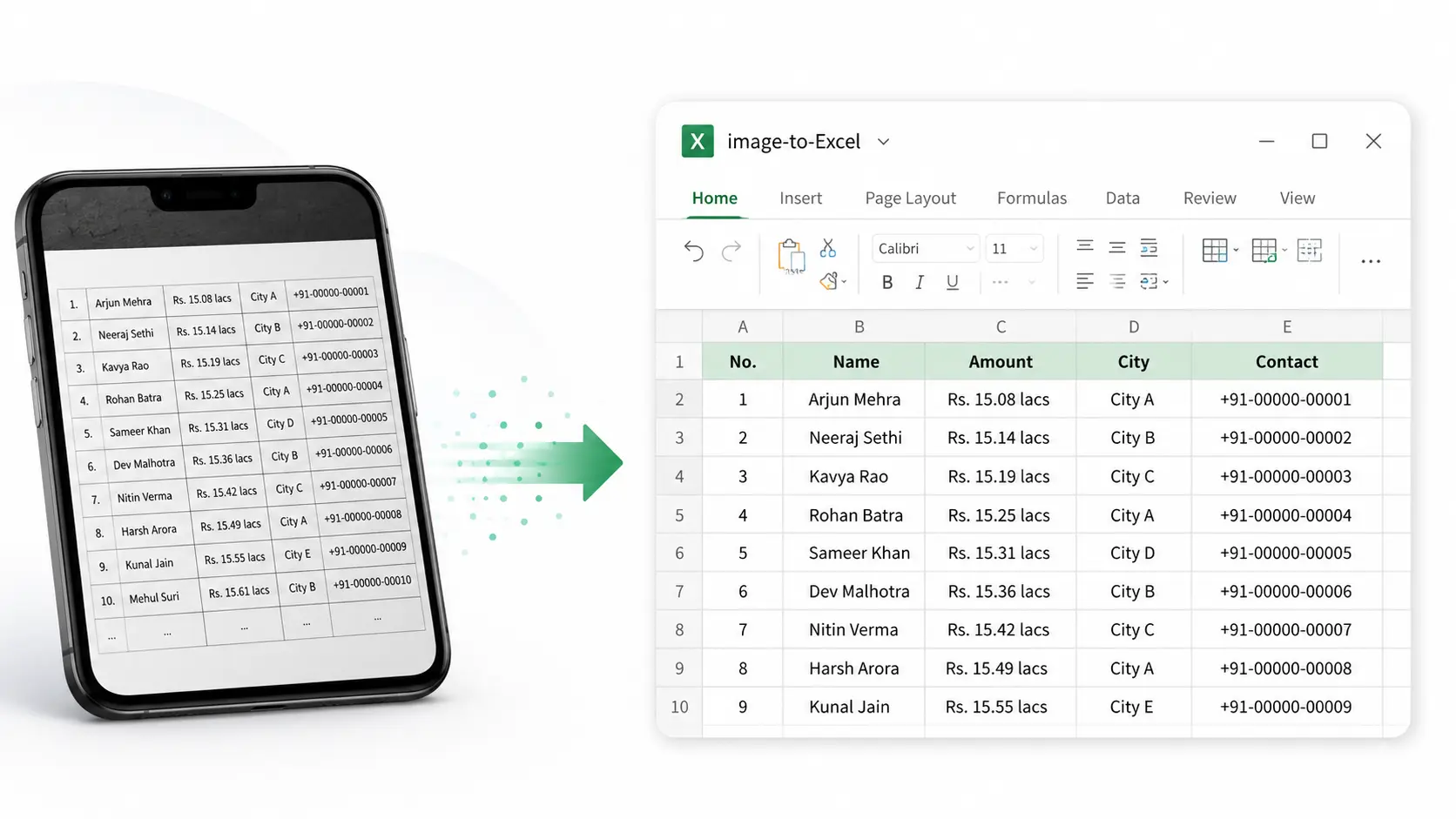
Image to Excel table
Convert Image to Excel Table
See how OCR extracts real rows and columns from photos, screenshots, scanned documents, invoices, and table images.
Read guide
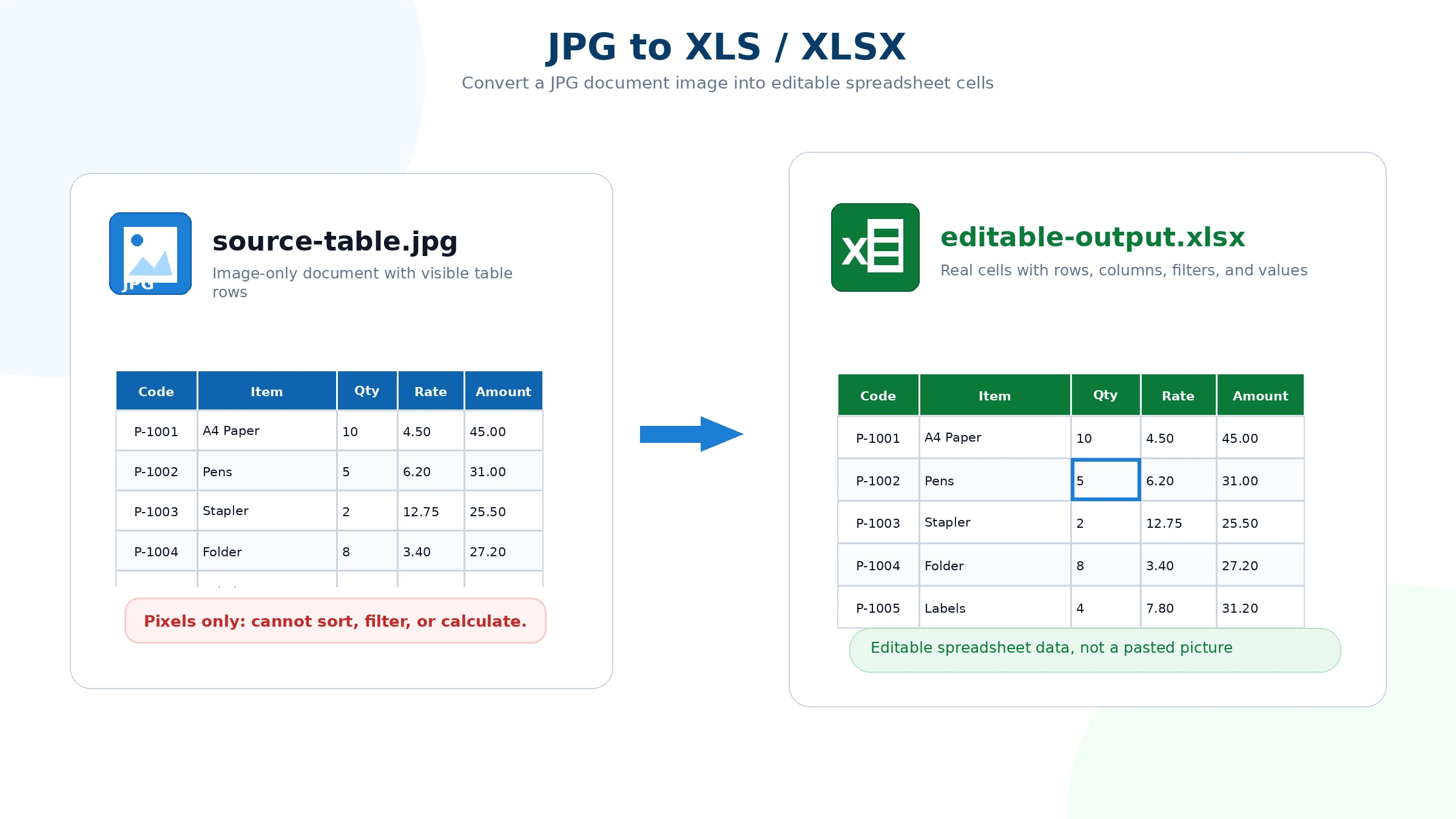
JPG to XLSX
JPG to XLS or XLSX
Understand JPG to XLS, JPG to XLSX, editable spreadsheet output, and how to check whether the result is real cells.
Read guide
Privacy and file handling
Uploaded files are used to perform OCR conversion and generate spreadsheet output. Avoid uploading documents that contain sensitive personal, financial, or confidential business information unless you are comfortable processing them online.